

D1675 16-Channel 75W Digital Amplifier

Premium Performance & Exceptional Reliability


The perfect multi-channel amplifier for any need

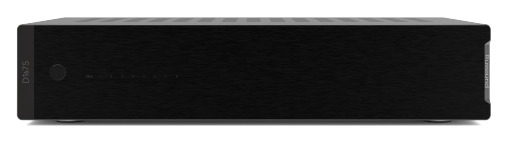
Intoducing the all-new D1675, a 16-channel, 75 watts per channel amplifier that joins the D1290 at the forefront of Russound’s amplifier assortment.

Showcasing the latest industrial design and filled with the best in premium audio components, the D1675 is perfect for adding additional audio to any room in the house that needs more power and dynamic range to bring the sound to life.

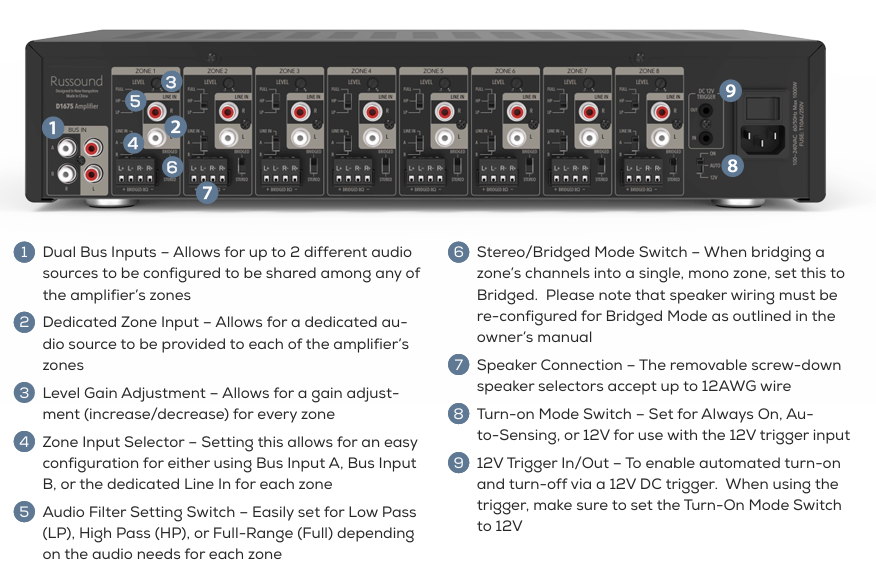
With powerful features like bridgeable channels that can provide up to 150 watts of power when needed, to Russound’s first built-in audio filters that allow the amp to focus either on traditional full range audio, to focus on low frequency sounds to power your favorite subwoofers, or to focus on high frequency sounds that allow the amp to pair perfectly with architectural speakers that typically can’t reproduce low frequency sounds to maximize the efficiency of both amp and speaker together.

With quick to configure rear-panel switches for all settings, the D1675 is one of the easiest amplifiers to install on the market today.
Available Now!
D1675 16-Channel
75W Digital Amplifier

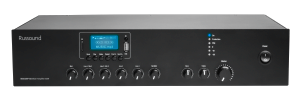
D1675 Front and Back

MORE INFO

D1675 Rear Panel Callouts
icon

Quick, easy install with rear panel switches for all settings

icon

Voltage-tracking Power Supply for more dynamic sound

icon

Built-in Automatic Protection for: Short-Circuit, DC Output, Thermal Overload, Over-Current Conditions, and Clipping
icon

Built-in audio filters to tailor the sound for the application
speaker

AW70V6 Claim Submission

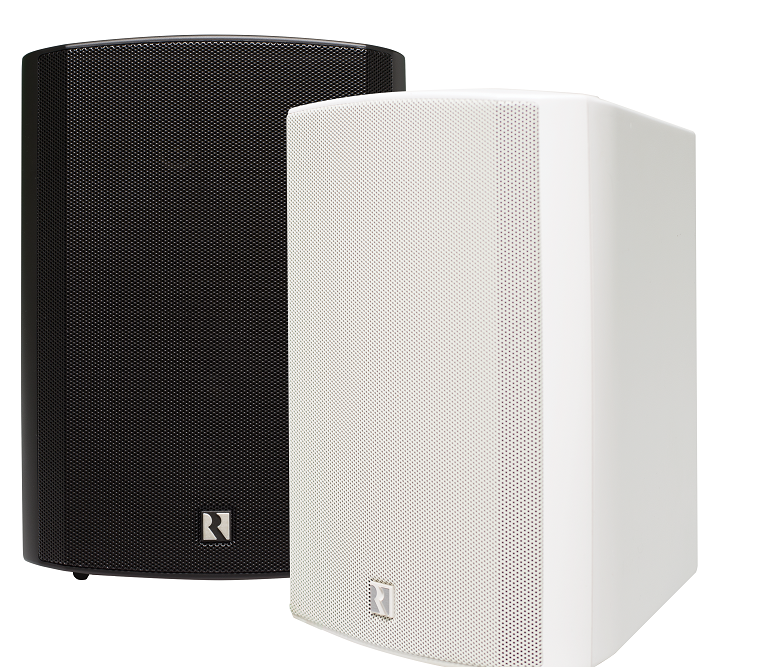
In cooperation with the U.S. Consumer Product Safety Commission (CPSC), Russound has initiated a VOLUNTARY RECALL of all AW70V6 70V/100V Surface Mount Loudspeakers. COMPLIANCE WITH THIS RECALL CAN BE FULFILLED WITH A SIMPLE PRODUCT REPLACEMENT.

Please be aware that this recall only applies to the AW70V6 speaker model. The replacement model AW70V6mk2 is NOT part of the recall.

Before proceeding with replacing your speaker(s), please choose from one of the following two options:

Please note that the information on this page is designed for customers in the USA and Canada. If you are outside of these two countries, please email us at so that we can reach out to you.

Get The Latest Training From Russound

PRODUCT TRAINING CENTER

The contents of this Russound training module is intended for users and prospective users to develop a basic understanding of Russound's products, functionality and operation. Russound products may only be purchased and serviced by authorized dealers and distributors (available through the Russound website at https://russound.com/dealer-locator.) Use of this training does not constitute any agreement between Russound and the user. All Products, Patents, Copyrights, Service Marks and Trade Marks are the exclusive property of Russound and may only be used with written permission from Russound. For more information about Russound products please visit www.Russound.com.

Russound also has videos and powerpoint-type trainings available both to direct dealers and to dealers who purchase Russound products through our distribution partners. Links to all of our training materials are sent periodically to all Russound Certified Installers. If you are a Russound Certified Installer and have not received these links, please send an email to from the email address you set up with us for your Russound Portal account and we will email you those links. Our trainings are based on the principle that we don't simply read a list of features and expect everyone to understand a subject; we try to "teach you how to fish" rather than just "give you a fish" as the saying goes. Our goal is to give our installers the tools and knowledge they require, in the format which is most convenient and effective for them.

MIXAMP-60 Training

MIXAMP-60 Image

TRAINING OVERVIEW

This lesson gives an overview of the MIXAMP-60, its benefits, and some possible use cases

VoicePlay Training

Voiceplay Image

TRAINING OVERVIEW

This lesson gives an overview of the VoicePlay system, benefits, and system ideas

Training Coming Soon
RCI Logo

LEARN HOW TO
BECOME AN RCI DEALER

april fools header 1

Thank you for being a loyal and fun customer!

russound signatures 100 Russound ASoundR 400px

XTS7 OnWall2

The XTS7 can use either a PoE (802. 3af) or a 12VDC(1A) power supply.

The XTS7 circuitry is designed to prevent any problems should this occur. Only one power supply is needed.

The XTS7 can be connected to any 802.11b/g/n (2.4GHz) Wi-Fi connection

The XTS7 can be installed with any apps available to it on the Google Play Store for the country or territory where it is located. The XTS7 runs Android and APK files may be installed onto it directly if the appropriate permissions are enabled through the standard Android settings.

Revision 1 or higher units are designed to be installed in either Portrait or Landscape orientation. In addition to an orientation sensor, they have a special mounting bracket and rear housing that allows installation in either orientation. These units are clearly marked on the product packaging that they support Portrait Mode.

Unfortunately, no. The rear housing and bracket that allow for portrait/landscape installations are different on newer XTS7 (Revision 1 or higher).

The standard Android screen lock and security options are available, including both PIN and password control.

This depends on the app size. The standard storage on an XTS7 is 16GB but not all of that is available for new apps. The XTS7 includes a microSD card slot on the bottom to expand the storage size by up to 256GB of additional storage.

The XTS7 has a Bluetooth connection for use with Bluetooth speakers or to connect with any Russound MBX or BTC-2X Bluetooth device.

The XTS7 can support Chromecast but the use is app-specific. For any specific app, you’ll need to verify that the app you wish to use with Chromecast is supported in an Android tablet-type device like the XTS7.

2 Great Mobile Apps From Russound

The family of Russound mobile apps is growing and each one is designed to work with a specific system, giving you the best options for control and managing your whole home music system. Below is how each app differs from each other and which systems it is designed to work with.

Russound App

Phone Image

SUPPORTED PRODUCTS
MCA-66 - Six-Source, Six-Zone Controller
MCA-88 - Eight-Source, Eight-Zone Controller
MBX-PRE - Wi-Fi Streaming Audio Player
MBX-AMP - Wi-Fi Streaming Zone Amplifier
MCA-88X - Eight-Source, Eight-Zone Controller with built-in XStream Audio Player
XSource - Streaming Audio Player
XZone4 - 4-Stream, 4-Zone Audio System
XZone70V - Streaming Mixer Amplifier

DOWNLOAD THE APP TODAY

Apple Store, Google Play store

VoicePlay™ App

Phone Image

SUPPORTED PRODUCTS
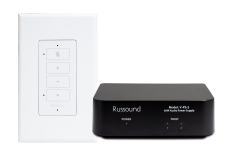
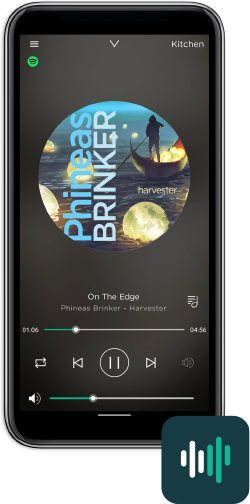
VoicePlay V-KP-1 Amplified Keypad
with Alexa Built-in

DOWNLOAD THE APP TODAY

Apple Store, Google Play store

MyRussound Devices

MyRussound Devices

The Russound App

New Innovations and Features

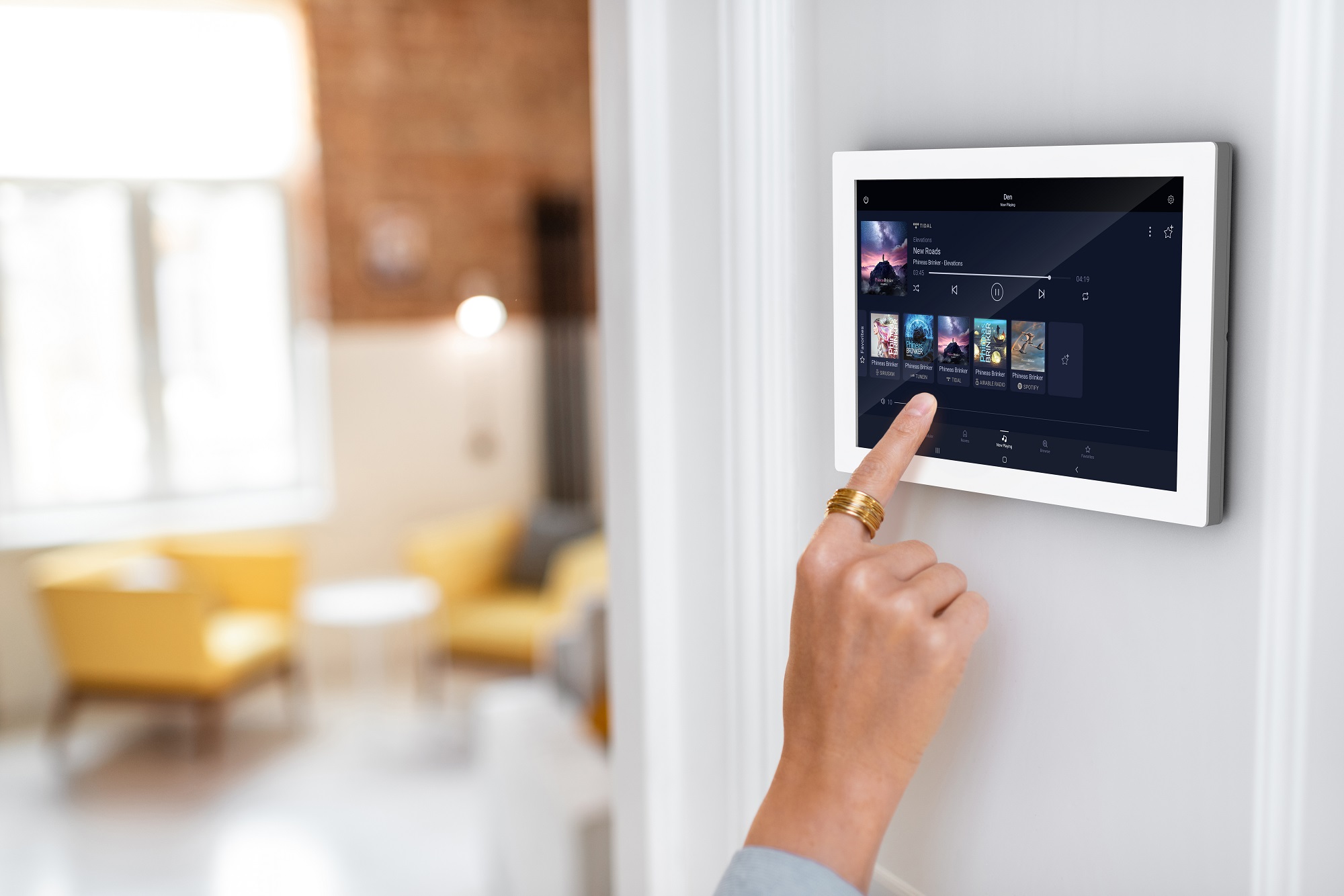
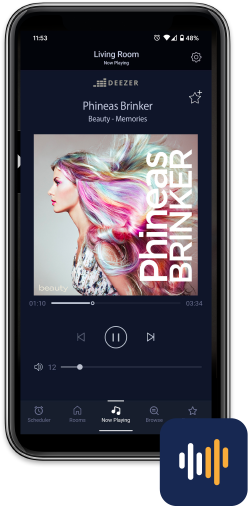
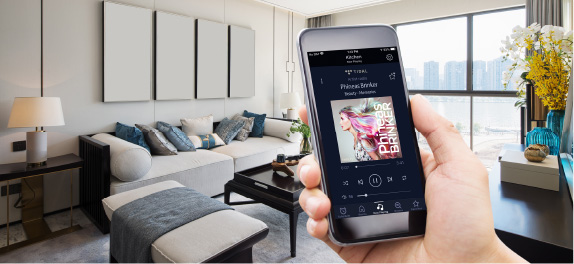
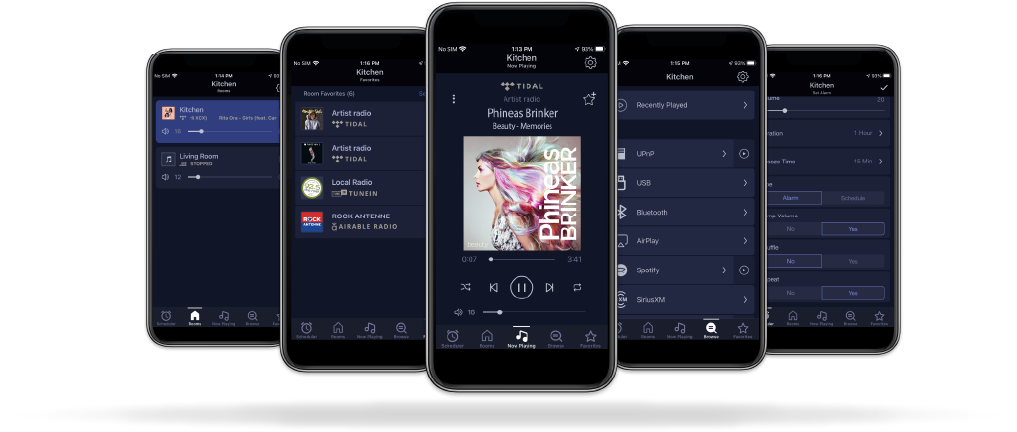
Meet the Russound app, the easiest way to enjoy your favorite music throughout your home.  From simple one room systems to larger systems all the way up to 48 rooms, the Russound app gives you all of the tools you need to manage, control, and most importantly to enjoy your favorite music.

Drag and Drop Ordering of Favorites – With Russound’s expansive capability of supporting up to 32 different favorites, finding and accessing these could become cumbersome if not for the app’s ability to let you drag and drop your favorites in any order, changing them as often as you wish.

Customizable Room Display Reordering – In larger homes, finding the right room to control and play your music can be harder than it needs to be with many audio systems.  Russound avoids that problem by allowing you to re-arrange the rooms in your Russound app to put the most used rooms at the top of the list.  And this is done individually for every phone/tablet so that everyone in the home can adjust this to their own needs and change it whenever they’d like.

Default Room Setting – This feature allows you to choose any room in the home as the default room to control whenever you open the  Russound app.  Simply press and hold any room in the room list and choose “Set as the default room”.  No more fumbling around trying to find the room you want.

Have a feature you’d like to see in the Russound app?  We’d love to hear from you.  Just use “Report a Bug” in the settings screen and tell us what you’d like us to improve.

.

Main Lineup Image Here
ICON

Easy, Intuitive Room Grouping

Group any number of rooms for seamless synchronized music throughtout your home. Simply go to the room list and tap the speaker icon in the room that you’d like to have share its music to other rooms in your home. Then, it’s as simple as tapping each room that you’d like to add. You can add/remove rooms later by following the same process and simply deselecting any rooms you want to remove and selecting any rooms you’d like to add!

ICON

Faster and More Responsive Browsing

With the almost unlimited selection of music available, being able to quickly and easily navigate to the song, artist, album that you’re looking for is a key to enjoying any music system. Browsing has never been quicker for Russound products than on the new app.

ICON

Improved Favorites Access

Easy-access support for both room-based and app-based favorites, letting you customize them as needed. Want a favorite that anyone in the home can access through any phone/tablet running the Russound app? Save it as a room favorite. Want to have your own personal favorites that you can quickly play in any room in your home? Save it as an app favorite.

ICON

Quick access to Schedules, Alarms and Sleep Timers

Setting up and using our innovative scheduling features, alarms and sleep timers is now easier than ever. With our new navigation bar, scheduling is available quickly from anywhere in the app. The advanced scheduling features available from Russound give you the ability to add advanced automation to your listening routines that was previously only available through expensive 3rd party control systems.

ICON

New iPad Layout

While creating the new iOS app, we re-designed the iPad screen layouts to take advantage of the extra screen space available and maximize the ease of use for our customers. The new design style also closely matches the iPhone style, so that a user can easily transition from one iOS device to another without having to learn two different screen layouts.

ICON

Android Tablet Support

While laying out the larger screen layouts for the new iPad design, we took the same layout and applied it to our Android tablet layout. Rather than just get an expanded phone view, Android tablet users will now get the same expanded layout that had previously only been available to our iPad users.

ICON

Full Portrait/Landscape Mode Support

We know that each of you uses your mobile devices differently and designed our new app to be as flexible as you are. For that reason, the new app fully supports both Portrait and Landscape orientations on both phones and tablets.

ICON

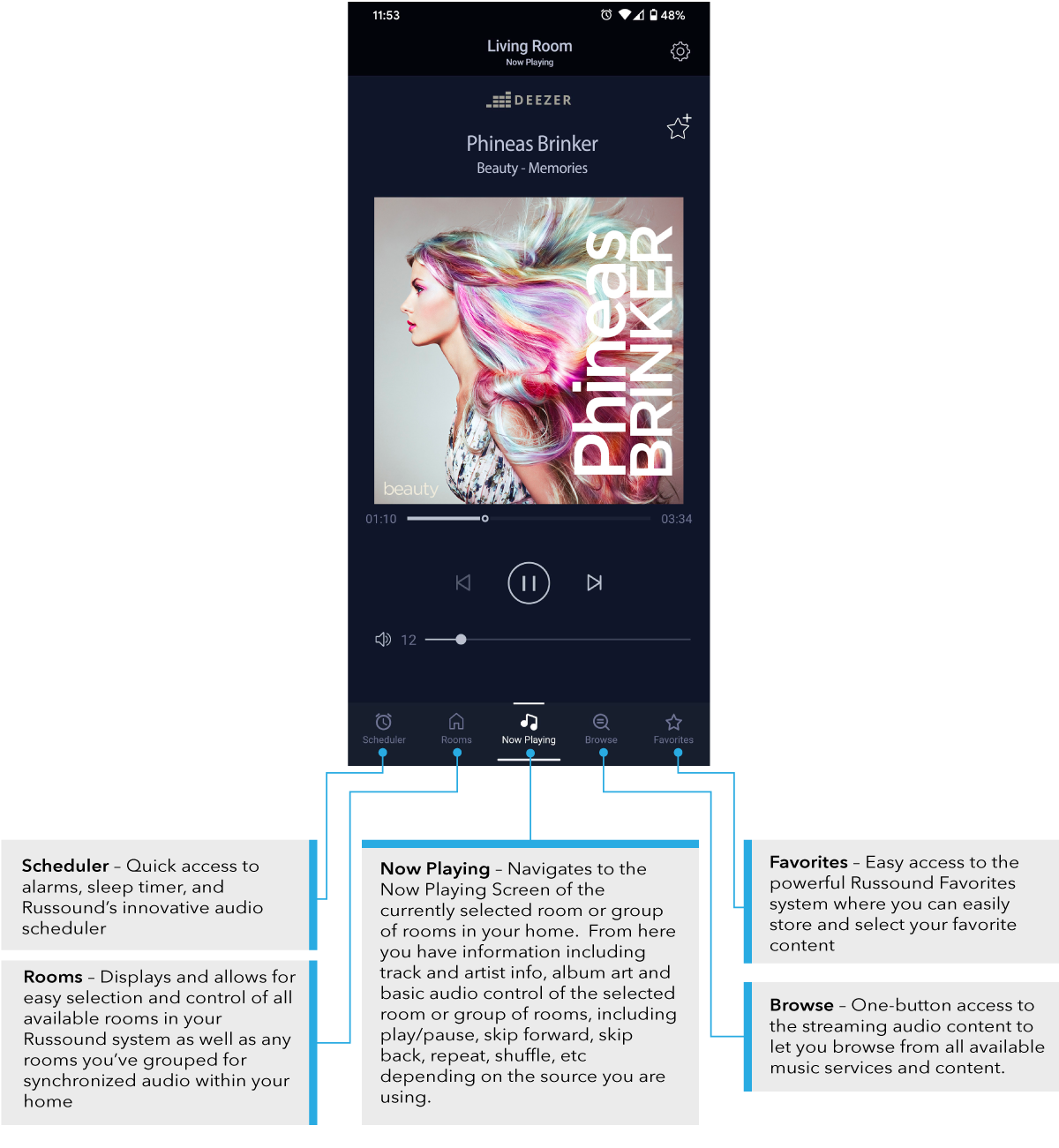
Improved Navigation with Always Available Navigation Tabs

Never lose your place or your music. The newly desgined interface keeps your main navigation for the app always visible to quickly find and select the function you are looking for.

Always Available Navigation Bar

callout-image

Supported Models

Controllers: SMZ8, SMZ16-PRE, MCA-66, MCA-88, MCA-88X, MCA-C3, MCA-C5
MBX-Series: MBX-AMP, MBX-PRE
XStream: XSource, XZone70V, X5, XZone4, DMS-3.1
Other: SMS-3, ST1, ST2, iBridgeBay, iBridgeDock

Mobile App

App Languages:
English, Spanish, French, German, Portuguese, Russian, Italian, Dutch, Polish, Chinese, Latvian, Thai, Ukrainian, Turkish

XTS Update Process – From Version 10.00.14 or 10.01.06

(PLEASE NOTE: This is the process for the XTS, not the XTSPlus. For more information on how to update the XTSPlus and tell the difference between the two please click HERE)

All of the steps listed below are performed on the XTS touchscreen itself. You don’t need to use a phone/tablet/computer and you do NOT need to remove the XTS from the wall. The steps are all performed on an installed and running XTS touchscreen.


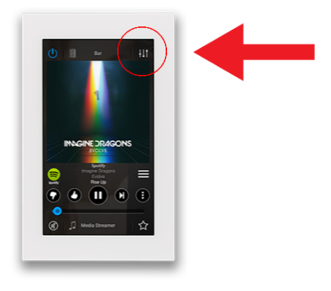
  1. From the Now Playing Screen, tap the Settings icon in the top right
  2. From the Settings Menu, scroll down and tap the “About Russound XTS” option
  3. Confirm the Version Number
IMPORTANT: The update process below is only for units with versions:
  • 10.00.14
  • 10.01.06
From the Now Playing Screen:
  1. Press and Hold the Settings icon in the top right until “Admin Settings” appears (this will go through two screens; settings then admin settings, and take about 4 seconds)
    Image
  2. Tap on the IP address in Blue
    An IP Address change screen will appear
  3. Tap on “Enter Preview Mode” at the bottom of the screen
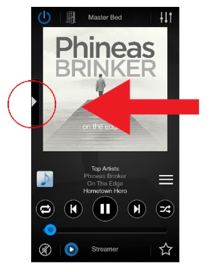
  1. From the Preview Mode Now Playing Screen, tap on the Russound Launcher icon
    Image
  2. From the Add Launcher Menu, tap on “Application”
  3. Select any icon (you are going to create a temporary launcher so the icon you choose doesn’t matter. In our example, we’re choosing the light bulb)
  4. From the Add Launcher screen, enter the name “Settings” in the Launcher Name Field
    Any name will work, but naming this launcher as “Settings” makes it very easy to identify this launcher later.
  5. From the Add Launcher screen, enter the following text in the URL field exactly as shown:
    com.android.settings
  6. Tap on “Save” to save the new Settings Launcher that you just created.

NOTE: Before proceeding, read all of Step 4. The XTS will reboot 15 seconds after you activate the Settings Launcher. Don’t worry if the device reboots before you finish Step 4. If that happens, you will just need to go back to Preview Mode following the steps above and re-activate the Settings Launcher.

Stopwatch
  1. Tap on the Settings Launcher that you just created in Step 3 to activate it.
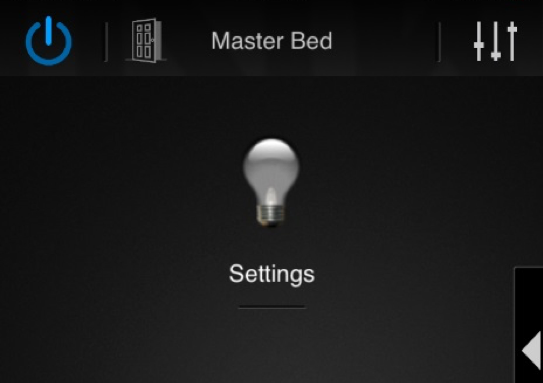
    (It will have the icon you just selected and be called “Settings”. In our example, it’s the light bulb icon and the word “Settings” for a name as shown here.)
    Settings Screen
  2. From the XTS Android Settings Screen:
    Scroll down to the “Security” section and tap it to select it (It is the second option under “Personal”)
  3. From the Security Sub-Menu,
    Tap “Unknown Sources” to enable it (a checkmark will appear in the box when enabled)
  4. A pop-up caution message will appear asking you to confirm the change.
    Tap on OK in the popup window.
  5. Wait for the XTS to reboot (it will reboot automatically when the 15 second timer expires. The XTS takes less than a minute to reboot).

  1. Enter the MyRussound App’s Preview Mode by repeating Step 2 above
  2. From the Preview Mode Now Playing Screen, tap on the Russound Launcher icon
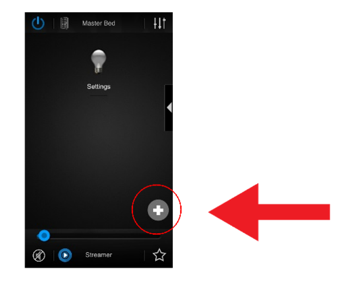
  3. From the Launcher Menu, tap on the “+” icon (once you’ve created your first launcher above, to add a new launcher, you must tap on the “+” icon to add a new launcher)
    + icon screen
  4. Select “Web Page” as the type of launcher you want to create
  5. Select any icon (you are going to create a temporary launcher so the icon you choose doesn’t matter. In our example, we’re choosing the light switch)
  6. From the Add Launcher screen, enter the name “Xts” in the Launcher Name Field
    Naming this launcher as “Xts” makes it very easy to identify this launcher later.
  7. From the Add Launcher screen, enter the following text in the URL field exactly as shown:
    updates.russound.com/xts/xts.apk
  8. Tap on “Save”

NOTE: Before proceeding, read Step 6 a-f. The XTS will reboot 15 seconds after you activate the Web Page Launcher named “Xts” that you just created. Don’t worry if the device reboots before you finish these steps. If that happens, you will just need to go back to Preview Mode following Step 2 and re-activate the Xts Launcher.

Stopwatch
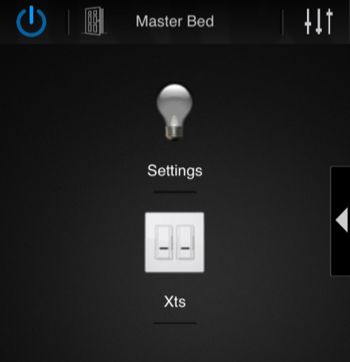
  1. Tap on the Launcher that you just created at the end of Step 5 to activate it. (It will have the icon you just selected and the name you just entered. In our example, it’s the light switch icon and the word “Xts” for a name.)
    XTS Setting Screen
  2. A window will show up with two options. Tap the ES Downloader and tap “Just Once”
  3. A pop up will appear, tap “Open File”
  4. Another pop up will appear, tap “Install”
  5. Quickly scroll down to the bottom of the screen where it says “Install” and tap that
  6. A screen will come up that says “installing…” and then “App installed”. Tap where it says “Open” at the bottom of the screen
  7. A pop up screen will appear asking you to confirm you want to install the latest OS image for this device. Tap “yes”
  8. Wait for the update file to download (depends on internet connection speed but should be about 1-2 minutes). The XTS will reboot automatically
  9. Wait for the Installation process to complete (should take 1-2 minutes)
  10. The XTS will reboot and show the Russound cube icon and go through initialization after the install (could take up to 5 minutes)
  1. From the Now Playing Screen, Press and Hold the Settings icon in the top right until “Admin Settings” appears
  2. Tap “Clear Cache and Data”
  3. The XTS will return to the searching for devices screen
  4. From the Settings Menu, scroll down and select the “About Russound XTS” option
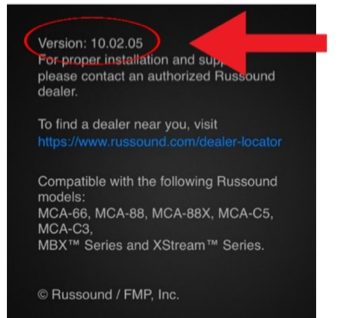
  5. Confirm that the version is now showing 10.02.05 or higher
    final firmware image

Congratulations! You’re done.

All future updates on the XTS will now be made by choosing “Check for Updates” on the MyRussound Settings screen.

Subcategories