


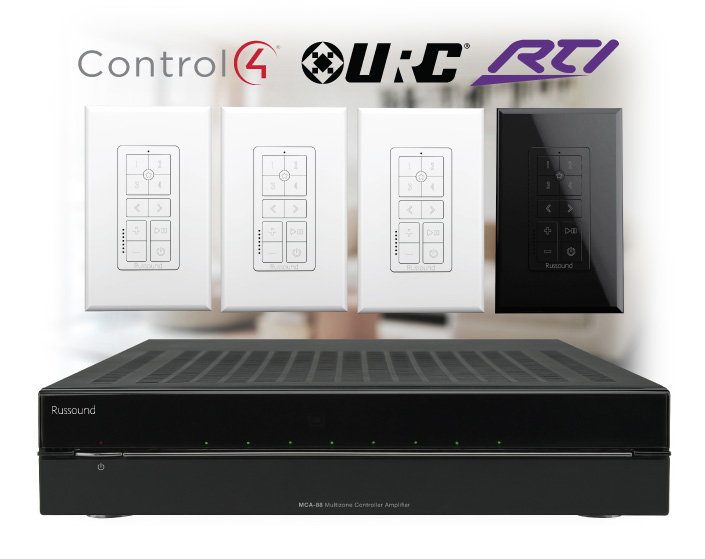
Amplifiers

Multiroom Audio & Intercom System

Works with Rhapsody DLNA

Mulitroom Audio & Intercom System

Russound Collage Kaypad and Media Manager Listen to all your favorite music sources. Listen to music apps from your iPad, iPod and iPhone. Listen to music files from your Android phone, PCs, MAC and NAS drive. But Collage is much more than just a multiroom audio system – it also provides you with the ability to do room-to-room paging, whole house paging, and room monitoring, all from a sleek and attractive in-wall keypad.

The Russound Collage system is not only the most flexible and expandable system on the market today, it also is perfect for installation into your existing home without the need to run new wires, because it distributes audio and data over the homes’ existing electrical system. Collage uses HomePlug Powerline Carrier technology to establish an IP data network over your existing residential electrical system and can be installed anywhere in a home where electrical wiring is run. The Collage system consists of 2 key components – the Collage Media Manager and the Collage Amplified Keypad.

With Russound Collage you can easily:

  • Listen to Streaming Internet Radio* from Rhapsody, Pandora*, SiriusXM Radio*
  • Listen to FM radio
  • Enjoy your music stored on your PC or Network Attached Storage
  • Listen to music stored on your Android Phone
  • Page one room or all rooms
  • Monitor another room (e.g. Baby monitoring)

The Russound Collage System is not only the most innovative multiroom audio and intercom system available today; it’s also easily upgradable for the future. New features and functions can be easily accommodated via firmware updates provided over the internet from Russound, thereby maximizing your investment.

Contact a local dealer or installer today, and enjoy digital music and intercom communication tomorrow in any room in your home.

* Russound Virtual Soundcard Required

Collage Music

Networked Stored Music

With Collage, accessing music stored on your home’s computer network is easy. Setting folders, drives, or networked attached storage devices that contain your digital music to ‘share’ allows Collage to quickly navigate your collection. The only required pieces are a PC with Windows Media Player 11 or greater, or computers and storage devices equipped with DLNA server software.
Click here for more information on DLNA services.

Experience Music without limits

RhapsodyEach Collage Powerline Media and Intercom system comes with a free six-month subscription to the Rhapsody digital music service. More Info

Access to other online music services is coming soon. Check in for updates.

Collage Intercom

Not only does Collage allow you to listen to your digital music or streaming music available online, but it can allow you to communicate with your family through its intercom feature. From any system keypad you can page any other keypad, or call the entire system. Operation is easy, with hands-free, duplex communication between keypads.

Room Monitoring

In addition to Intercom communication, the Collage system provides a room monitoring function. Any system keypad can be set as a ‘room monitor’, and that room becomes a source for other system keypads. This allows you to monitor the baby sleeping in the nursery from the living room, the den, or the master bedroom without having to carry any hardware around.

System Components

Collage Amplified KeypadCAK1

See Details

  • High-resolution QVGA display
  • Capacitive touch buttons and scroll wheel
  • Internal FM radio tuner
  • Built-in intercom enables point-to-point communications

Collage Media ManagerCMM1

See Details

  • Hosts up to 10 Collage Amplified Keypads
  • Broadcast up to 3 independent streams of digital music
  • Friction-free access to digital media (LAN and Internet)

System Accessories

Collage Remote ControlCRC1

See Details

  • 12 button remote that provides access to Collage system keypad presets and functions, including alarm and sleep timer.

Collage Videos

Collage Keypad Video

Collage Gridcast Test

Collage System Installation

Collage GUI Interface

Technical Information

Accessing digital music from your home’s Local Area Network (DLNA)

One of the innovative features of the Collage Powerline Media and Intercom system is its ability to access digital music from your home’s Local Area Network. The Collage Media Manager establishes a connection between the system and your network, opening up access to music stored on your desktop and laptop computers, hard drives, LAN servers or network attached storage.

To accomplish this, your computers, servers, and networked attached storage devices must run software that conforms to the DLNA (Digital Living Network Alliance) interoperability guidelines for consumer electronic entertainment devices to communicate over a network, or more specifically, the UPnP (Universal Plug and Play) AV standard of networking protocols.

Collage can natively communicate with Windows based computers running Microsoft for Windows XP and later operating systems, as the operating systems are equipped with Windows Media Connect, a UPnP AV server. Other third party UPnP AV software can also be used.

For Apple or Linux based computers and servers, or Networked Attached Storage Devices, third party UPnP AV software must be installed for the Collage system to see the music stored up the computers.

Windows and Mac users who are managing their media collections using iTunes can use a third party application such as Twonky Media.

Rhapsody

Experience Music without limits

Rhapsody is the music service that lets you connect to a catalog of over 8 million full-length songs from wherever you are. Your Russound Collage system includes a FREE six-month trial subscription, so you'll be able to listen to anything and everything in the catalog instantly. Find your old favorites or the newest releases, create the perfect playlist, or just kick back and listen to commercial-free Rhapsody Radio. You can also listen at Rhapsody.com and through a variety of compatible electronics.

For more about Rhapsody or to sign up now please visit www.rhapsody.com/russound.
* Rhapsody music services is available in the US only.

Already have a Collage system installed?

To set up your account, you will need a computer with internet access, an email address, a credit card, plus your free trial coupon code from Russound. Follow these easy steps and in no time, you’ll be connected to millions of songs with Rhapsody. You can always cancel your account at anytime before the end of the trial period. Click here to create your new account.


Frequently Asked Questions

Below is a listed of Frequently Asked Questions regarding the Collage Powerline Media and Intercom System, how it works, how it is installed, and what features it delivers. Click on a question for more information.

Do you have a question that doesn’t appear on this list? Click here to submit a question.

Technology

  • What is PLC?
    PLC stands for powerline carrier. Powerline carrier technologies allow data and other communications to travel on electrical wiring along with the electricity. This allows PLC-based whole-house audio systems like Collage to de-centralize installations by using the home’s existing wiring to pass along system commands and audio signals to keypads and components. For more information on PLC, see www.homeplug.org/products or en.wikipedia.org/wiki/Power_line_communication.
  • What version of HomePLug does Collage use?
    Collage uses HomePlug 1.0+ Extended version which operates in the 2 to 30 MHz range. It uses 56-bit Data Encryption Standard.
  • What kinds of NAS drives can I use with my Collage system?
    There are several types of NAS (network attached storage) drives that can be used.
    1. NAS with DLNA server built in.
      1. Stands alone in a network setup, does NOT need to be connected to a computer.
      2. MUST be connected to a switch port on a Router in order to be accessed by Collage.
      3. The Collage Media Manager also needs to be attached to a switch port of the Router, or part of the same network.
    2. NAS drive WITHOUT DLNA server built in.
      1. MUST be attached to a computer, otherwise Collage or any other DLNA rendering device can’t access it directly.
      2. Computer must remain on for Collage to access it.
      3. Drive needs to be mapped to that computer and indexed by Windows Media Player, Twonky or similar program.
  • Will it hop phase in the electrical panel?
    Yes, in 98% of installs no phase coupler is needed.
  • Will it work in a multi-electrical panel installation?
    Yes, there may be a need to utilize a PLC bridging device in some situations.
  • What about other homes in my neighborhood using the same or similar technology?
    Each Collage system operates independently of any other Collage system. Each system’s keypads and devices bind to the system’s Media Manager by exchanging a unique key based on its MAC address. Encryption is also deployed, resulting in robust protection of each system’s individuality.
  • Can Collage co-exist in a home with other PLC technologies deployed, such as X-10, CEBus, UPB, etc.?
    Collage’s HomePlug 1.0 Extended PLC technology is compatible with other PLC technologies, as it operates on a different frequency spectrum. One exception would be a DS2 system (used primarily in Europe), as DS2 and HomePlug operate in the same frequency spectrum.
  • What is Rhapsody?
    Rhapsody is a subscription-based online music service that gives you on-demand access to millions of songs from thousands of artists. Once your account is established, you can access Rhapsody Direct through Collage keypads, your computer, or any other enabled device. Each Collage system comes with a free six-month subscription to Rhapsody Direct, compliments of Russound.
  • What is DLNA?
    DLNA stands for Digital Living Network Alliance, an organization who supports interoperability standards and cooperation among various industries. It supports universal device recognition of music in common file formats, including WAV, MP3, WMA, OGG, and FLAC. A DLNA-enabled storage device will be automatically recognized by the Collage system and will show up on the keypad as a music source.

Installation & Setup

  • Does my Collage keypad automatically adjust for Daylight Savings Time?
    No, this feature will be in a future firmware release. You can easily adjust the Daylight Savings Time setting yourself by following these steps:
    GTM User Screen
    1. Press and hold the Menu button (third button down on the left of the keypad).
    2. This brings up the “Advanced Settings” page. Select “Continue.”
    3. On the “Advanced Options” page, select “Timezone” under “System Settings.”
    4. On the “Time” page, select “Other Timezones.”
    5. On the “GMT Offset” page, set the offset for your timezone as follows:
      • Eastern: -4
      • Central: -5
      • Mountain: -6
      • Pacific: -7
    6. Return to the Home screen (press top left button). The time should now reflect Daylight Savings Time setting for your timezone.
    Note:
    GMT stands for Greenwich Mean Time, a global time setting that is never adjusted for daylight savings or summer time changes.
  • Do I still need to run speaker cable to the speakers?
    Yes. The keypad has an amplifier built into it. Speaker cable should be run from the keypad to the speakers.
  • Will it hop phase in the electrical panel?
    Yes, in 98% of installs no phase coupler is needed.
  • Will it work in a multi-electrical panel installation?
    Yes, there may be a need to utilize a PLC bridging device in some situations.
  • Can Collage be used in multi-resident dwellings?
    Yes, the system’s robust encryption process and unique binding procedure prevents “crosstalk” between systems. An independent PLC site audit should be performed to ensure the electrical infrastructure is maximized to support multiple HomePlug based systems. Some situations may require specialized Powerline carrier distribution/isolation equipment.
  • Can surge suppressors be used for devices that connect to an outlet, such as a power strip??
    Yes, as long as they are HomePlug compliant, as HomePlug products are designed to be connected directly to an outlet (unprotected). Check with the device manufacturer for details on HomePlug compatibility.
  • Will whole house surge protection products affect performance?
    No. As with all technologies, there may be exceptions.
  • Is Collage protected from lightning?
    As with all electronics, if the residence receives a direct or significant lightning strike, anything in the home can be destroyed. Collage has had extensive successful voltage spike (EMI) testing.
  • What is the solution if there is interference with the PLC signal?
    HomePlug is designed to reject most common noise sources found in most residences. There may be exceptions with very noisy devices. If there is a communication problem, a HomePlug recommended noise filter could be used to reduce the noise output from the offending device. Collage has had extensive successful voltage spike (EMI) testing.
  • Can the keypads be individually surge protected?
    No. Additional surge protection cannot be added to a keypad, but is not needed as this is built into each keypad.
  • Will GFI or AFCI devices interfere with it?
    No. Most GFCA and AFCI outlets will not interfere with Collage operation. However, make sure the device does not employ filtering and surge suppression as this may hinder the PLC performance.
  • Does the Collage keypad installation require a ground?
    Yes. Collage must be installed in accordance with local electrical codes. Therefore, a keypad installation requires hot, neutral, and a ground for safety purposes.
  • How exactly does the keypad connect to the power line?
    The Collage keypad has a power supply with flying leads that is directly hard wired to the electrical wiring with wire nuts. This power supply is located in the Collage Power Pocket. Collage receives its power by tapping a feed from a light switch or electrical outlet and running it into the Collage Power Pocket where the connections can be made.
  • Do I need a licensed electrician to install this system?
    Yes. A licensed electrician is needed to install the “high voltage” portion of the CAK1 keypad installation. This includes wiring the Power Pocket and its associated Power Supply. Once the Power Supply and Power Pocket have been wired and inserted into the back box, a low voltage installer can finish the installation.
  • If the power goes out, does the binding process need to be repeated?
    No. The binding information is stored in non-volatile memory in the keypad and media manager.
  • How many Collage keypads can be installed in a home?
    The system supports up to 10 keypads.
  • How will I know when new features and updates are available for my Collage system?
    When an update is available, it is posted to the Russound Collage server. A Collage Media Manager looks for updates each day, and if it finds one, it posts a “Firmware Update Available” message on the keypad’s Home screen. Once the update has been completed the message will be removed from the screen.
  • How do I perform a firmware update from the keypad? How long will it take?
    Go to any Collage keypad and go to the Home page. Select "Firmware Update" to start the firmware update process. Initiating a firmware update from any keypad will result in the entire Collage system being updated. There is no need to go to each keypad to do this. Keypads are updated and re-booted in a serial manner until they are all done. This will take between five and ten minutes; the duration is directly proportional to the number of keypads in the system.
  • How are keypads updated when they are added to an existing Collage system?
    Every new keypad requires an update before it can be programmed. An update is performed by selecting ‘Firmware Update” from the home screen and pressing the select button to initiate it. During this procedure, the entire system will be brought to the most recent firmware version.
  • Can I play music from iTunes?
    To access music from iTunes, Collage supports third party compatibility software such as Twonkyvision. Other third party providers can be used as well. It should be noted that songs with Digital Rights Management (DRM) cannot be played. Only non-DRM’ed or protected files can be played. Apple offers an upgrade path to un-protect files you may have previously purchased with protection employed.
  • I have sold my house and left my Collage equipment in place. How do I erase my Rhapsody credentials from the Media Manager so I don’t leave my account info behind?
    Answer One
    (NOTE: This method unbinds the keypads)
    1. Remove the power cord from the Media Manager (power down).
    2. While pressing and holding the bind button on the Media Manager, plug in its power cord (power up).
    3. Once the Media Manager’s LED's light up, the bind button can be released.
    4. The Media Manager has been completely reset and the Rhapsody account info is cleared from the unit. At this point keypads must be re-bound to the Media Manager.

    Answer Two
    (NOTE: This method keeps all units bound)
    1. On the keypad, go to Options/Settings/Rhapsody
    2. Enter a bogus user name such as "X"
    3. Enter a bogus password such as "X"
    4. This will overwrite your previous settings and result in an un-recognizable Rhapsody account.
  • When entering my user name during the Rhapsody setup, is the username case sensitive?
    NO, the username isn't case sensitive. Since the capital letters appear first in the list you can use all capitals.
  • When entering my password during the Rhapsody setup, is the password case sensitive?
    YES, the Password is case sensitive. It must be entered exactly as you created it during your Rhapsody account online sign up.
  • How do I setup Windows 7 Media Player to share music with Collage? (Windows Media Player 12)
    If media sharing isn't already turned on, follow these steps from your PC:
    1. Click the Start button , click All Programs, and then click Windows Media Player.
    2. If the Player is currently open and you’re in Now Playing mode, click the Switch to Library button in the upper-right corner of the Player.
    3. Click Stream, and then click Turn on home media streaming. (Turn on home media streaming won't be available on the Stream menu if streaming is already turned on.)
    4. On the Media streaming options page, click Turn on media streaming. If you're prompted for an administrator password or confirmation, type the password or provide confirmation.
    5. Click OK.

    Note:
    If your computer is on a public network, you will be prompted to change the network location before you can stream media. For more information about network locations, see Choosing a network location.
    If you have set up a homegroup, you might be prompted to share your media libraries with your homegroup before you can stream media. For more information about sharing libraries with a homegroup, see Share libraries with your homegroup.

Product Features

System Use

New Training Available

Learn more about Collage with online training.

Breeze Presentation Intro to Collage
Breeze Presentation Collage Installation

For dealers & installers

Breeze Presentation Finding New Business

Application Notes

Adobe PDF Russound Virtual Soundcard Notes
Adobe PDF Airplay Application Notes
